How to Automatically Track Objects in CapCut

Ever wondered how CapCut creators make text, stickers, or effects follow moving subjects so smoothly? That’s where automatic object tracking comes in. It’s a smart video editing feature that locks onto a moving element in your footage and ensures your chosen overlay follows it frame by frame. Think of it as giving your video a touch of Hollywood-level editing—without needing advanced skills.
For beginner video editors, this feature removes the headache of manually adjusting every frame. Instead of struggling with complicated tools, you can rely on AI-powered tracking to do the heavy lifting. Many editors trust this function because it saves time and delivers professional-looking results, even if you’re just starting out with video creation.
What makes automatic object tracking valuable is its flexibility—you can attach captions, logos, emojis, or even cinematic effects to a moving subject and keep your audience hooked. By understanding how it works, you not only improve the quality of your edits but also stand out in today’s content-heavy world where attention is everything.
Unlock more tips here:
- How to Use Auto Captions on CapCut
- Capcut Tips And Tricks for Advanced Video Editing
- Remove Background in CapCut: Easy Step-by-Step Guide
Step-by-Step Guide to Tracking Objects Automatically
Step 1: Import Your Footage
- Start by opening your video editing app and importing the footage you want to work on.
- Make sure your clip has a clear subject in motion; this helps the object tracking feature work more accurately.
- Think of it as setting the stage—without the right footage, even the smartest AI-powered tools struggle.
Step 2: Select the Object to Track
- Use the motion tracking option and highlight the object you want the software to follow.
- This could be a moving car, a person, or even a product in your video.
- The software will analyze the frames and lock onto the movement, so your edits stay aligned.
Step 3: Apply Text, Stickers, or Effects
- Once tracking is active, attach text, logos, stickers, or visual effects to the moving subject.
- For example, you can add a player’s name tag in a sports clip or a funny emoji following your pet.
- This step is where creativity shines—you make your video stand out by personalizing the tracked motion.
Step 4: Adjust and Preview the Motion Tracking
- Always preview your edit to check if the tracking points are smooth.
- If the subject moves fast or goes out of frame, adjust the path manually.
- A quick tweak here ensures your video looks polished and professional.
Best Practices for Smooth Object Tracking
- Use clear, high-contrast footage so the software can detect objects easily. Low-quality or blurry clips confuse the tracking system.
- Keep movement within the frame to avoid losing track. If your subject disappears halfway, your overlay won’t follow correctly.
- Refine tracking points when needed—don’t hesitate to manually adjust if the automatic tracking slips. Small tweaks go a long way.
By using these practices you can create a high quality videos in a very short period of time. Also you can use CapCut for PC for more handy video editing experience.
Common Issues and How to Fix Them
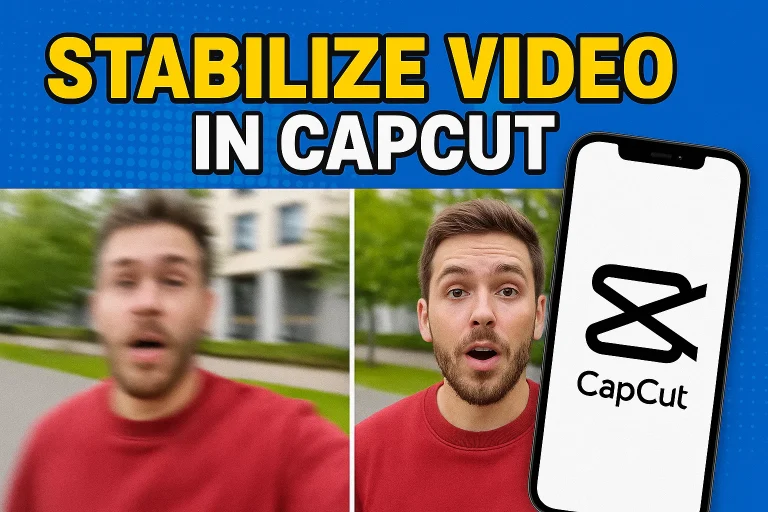
Dealing with Shaky Footage
- Shaky clips can confuse the motion tracking feature, making overlays jump around.
- Use built-in video stabilization tools before applying tracking for smoother results.
- Pro tip: record with a tripod or gimbal whenever possible—it saves time in editing and keeps your object tracking precise.
Fixing Lost Tracking Points
- Sometimes the software loses the subject, especially if it moves too fast or goes off-screen.
- To fix this, manually adjust the tracking points or reselect the object midway.
- Breaking the clip into smaller parts often helps the AI-powered tracker stay locked on target.
Avoiding Cluttered Effects
- Adding too many stickers, texts, or effects on one subject can distract the audience.
- Keep overlays simple—one or two well-placed elements look professional and engaging.
- Remember, the goal of object tracking is to enhance your story, not overwhelm viewers.
Our Top-Rated Blogs:
Final Thoughts
Object tracking makes video editing faster, smarter, and more engaging. With it, you can attach text, stickers, or effects that naturally follow movement, turning simple clips into dynamic, professional-looking content. It’s one of those features that saves beginners hours of work while still delivering impressive results.
That said, like any tool, it’s not perfect. Shaky footage, poor lighting, or too many overlays can reduce its accuracy. But with a little patience and practice, motion tracking tools become reliable helpers rather than frustrating obstacles, especially when paired with stable, high-quality footage.
If you’re just starting, give object tracking a try and experiment with different overlays. Don’t hesitate to ask questions in the comments, share your editing experiences, or reach out to the support team if something feels unclear. Video editing is a journey—and every experiment brings you one step closer to polished, eye-catching content.
FAQs

Daniel Carter is a tech blogger who enjoys testing Android apps and video editing tools. He has been using and reviewing apps like CapCut for a few years and writes simple guides to help people get the most out of them. Daniel believes that editing doesn’t have to be complicated—his step-by-step tips make it easy for beginners to learn and improve. When he’s not writing, you’ll usually find him trying new apps or sharing CapCut updates with his readers.