How to Use Green Screen(Chroma Key) in CapCut?
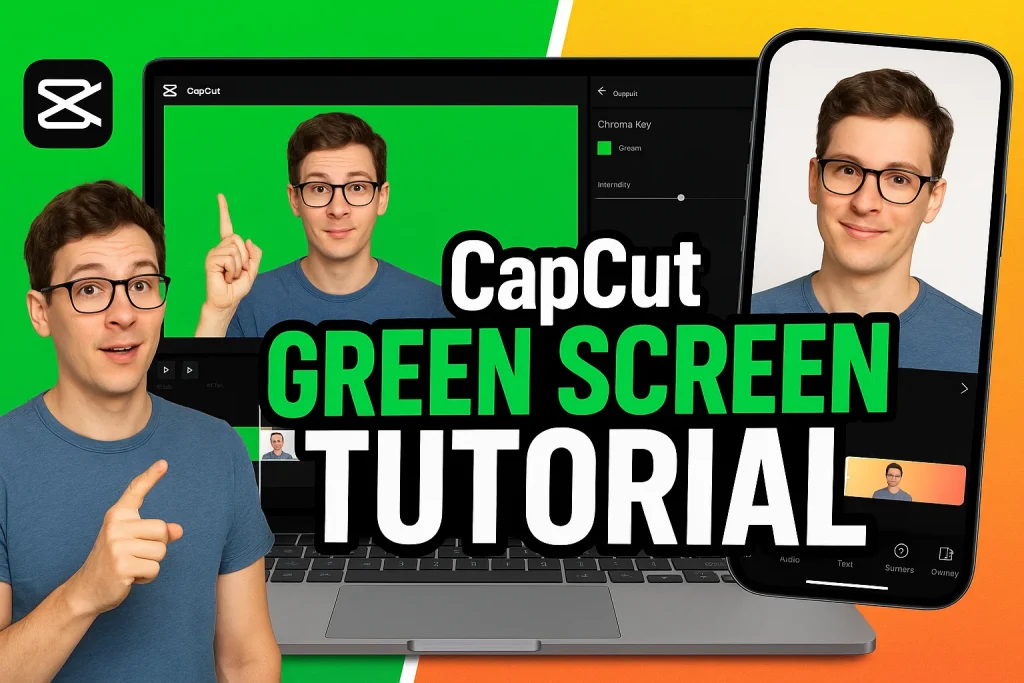
If you’ve ever wondered how creators seamlessly change their backgrounds in videos, the secret lies in the green screen effect. With apps like CapCut, you don’t need expensive software to create professional-looking edits. Whether you’re a content creator on TikTok, YouTube, or Instagram, mastering the CapCut green screen feature can take your storytelling to the next level.
We know video editing can sometimes feel overwhelming, especially if you’re new to tools like Chroma Key or background removal. That’s why this guide is written in a simple, step-by-step way so you can trust the process. Many beginners have successfully learned video editing in CapCut without prior editing experience, and you can too.
Unlike generic tutorials, this CapCut for beginners guide will walk you through clear, step-by-step video editing tips along with expert insights to achieve smooth and natural-looking edits. From importing footage in CapCut to color correction techniques, you’ll learn everything you need to make your videos stand out. Plus, we’ll share practical CapCut green screen tips to help you avoid common mistakes, save editing time, and create professional-quality content.
What Is Green Screen in CapCut?
The green screen in CapCut is a feature that lets you replace a solid-colored background (usually green or blue) with any image or video of your choice. Using the built-in Chroma Key tool, you can cut out the background and layer your subject over a new scene—whether it’s a city skyline, a game screen, or a branded graphic. This makes it easy to create professional-looking videos straight from your phone.
Why Use the Green Screen Effect
The green screen effect is one of the easiest ways to make your videos look polished without expensive equipment. It allows you to add creative backgrounds, showcase products in unique settings, or even transport yourself to different locations virtually. For creators on TikTok, YouTube Shorts, or Instagram Reels, this effect instantly makes content more engaging and shareable.
Benefits for Video Editing
Using green screen in CapCut saves time, reduces the need for complex setups, and gives you full creative freedom. Instead of filming at multiple locations, you can simply swap out backgrounds with a few taps. This not only makes your edits look cinematic but also helps maintain a consistent style across your content. It’s a must-have tool for anyone serious about growing with mobile video editing.
How to Add Green Screen in CapCut
- First download CapCut MOD APK latest version.
- Open the CapCut app and create a new project by importing your main video clip. This will serve as the background where you’ll apply the green screen effect.
- Tap the Overlay option and add the green screen footage you want to remove. Make sure it’s placed above your background clip on the editing timeline.
- Select the overlay and scroll through the toolbar until you find the Chroma Key tool. This is where you’ll remove the green background.
- Use the color picker to select the green area of the clip. The app will automatically remove that shade, leaving only your subject visible.
- Adjust the intensity and shadow sliders to clean up edges and make the background replacement look smooth.
- Preview your video to check if the green screen removal looks natural. If needed, tweak the controls until you’re satisfied.
- Export your finished edit in high resolution and share it directly to TikTok, Instagram Reels, or YouTube Shorts.
Step-by-Step Guide to Editing with Green Screen in CapCut
- After adding your green screen in CapCut, zoom in on the timeline to make precise adjustments to where the overlay begins and ends.
- Use the Chroma Key tool again if any green edges are still visible. Fine-tune the intensity slider until the subject looks clean without harsh outlines.
- Adjust the background video by resizing or repositioning it so your subject blends naturally with the new scene.
- Play around with the shadow and brightness settings to match the lighting of your subject and background—this makes the effect look more realistic.
- Add filters or color grading so both clips share the same visual tone. Even a slight adjustment can make the final video look professional.
- Layer extra elements like stickers, text, or effects to enhance storytelling. This is where you can get creative and make your edits stand out.
- Preview the video multiple times, checking for rough edges or mismatched tones. Small tweaks here save your video from looking unpolished later.
- When everything looks seamless, export the video in the best quality available so it’s ready for TikTok, YouTube Shorts, or Instagram Reels without losing detail.
Pro-Level Green Screen Hacks in CapCut You Should Try
Once you’ve mastered the basics, CapCut green screen editing opens the door to more advanced techniques. These tricks help your videos look polished, unique, and more engaging for platforms like TikTok and YouTube Shorts.
Layering Multiple Clips
With CapCut overlays, you can stack more than one green screen clip on the same timeline. This lets you combine multiple subjects or add extra elements like animations and logos. For example, imagine placing yourself in front of a city skyline while a product demo plays in another overlay—layering makes it possible. Just remember to keep things balanced so the final video doesn’t feel cluttered.
Adding Effects and Transitions
A plain background swap can sometimes look flat, but adding video transitions, filters, and motion effects can make everything blend naturally. Try using smooth fade-ins, glitch effects, or zoom transitions to connect scenes. Adjusting color grading across all layers also ensures consistency, making the subject and background feel like they truly belong together.
Using Green Screen for Creative Projects
The real fun begins when you use green screen in CapCut for creative storytelling. You could place yourself inside a movie scene, create educational explainers with animated backgrounds, or even design gaming highlight reels with custom graphics. These projects don’t just look professional—they also keep viewers hooked, which is key for growing on social platforms.
Why I Think CapCut’s Green Screen Feature Is a Game-Changer
From my own experience, the green screen feature in CapCut really feels like a game-changer because it takes something that used to be complicated and makes it easy for anyone with a phone. You don’t need fancy software or a studio setup—just a simple clip and the Chroma Key tool. I’ve used it to swap plain walls with creative backgrounds, add product demos behind me, and even create fun TikTok and YouTube Shorts in minutes. What makes it powerful isn’t just the background removal itself, but the freedom it gives creators to tell stories without limits. For me, that flexibility is what makes CapCut green screen editing stand out compared to many other mobile apps.
Conclusion
Mastering the green screen in CapCut is easier than other apps like Canva, Filmora etc. We’ve covered what the feature is, how to add it, a step-by-step guide for clean edits, plus some advanced green screen hacks to make your videos look professional. With just a few taps, you can transform plain footage into engaging, scroll-stopping content ready for TikTok, Instagram Reels, or YouTube Shorts.
In my view, CapCut’s Chroma Key tool is one of the best free editing features available on mobile. That said, the results always depend on good lighting, smart layering, and your own creative approach. While it won’t fully replace advanced desktop software, it’s more than enough for creators who want professional-looking edits on the go.
If you’ve got questions, don’t hesitate to drop a comment—I’d love to hear how you’re using the CapCut green screen effect. Share this guide with friends who want to level up their editing, and if you’re still stuck, the CapCut support team is always ready to help. For more practical tutorials and editing tips, feel free to explore our other blogs.
Discover the differences here
- CapCut Vs Canva | Which is Better in 2025?
- CapCut vs Premiere Pro: A Comprehensive Comparison
- CapCut Vs Filmora | Complete Features Comparison
FAQs

Daniel Carter is a tech blogger who enjoys testing Android apps and video editing tools. He has been using and reviewing apps like CapCut for a few years and writes simple guides to help people get the most out of them. Daniel believes that editing doesn’t have to be complicated—his step-by-step tips make it easy for beginners to learn and improve. When he’s not writing, you’ll usually find him trying new apps or sharing CapCut updates with his readers.