Remove Background in CapCut: Easy Step-by-Step Guide

Have you ever recorded a great video but felt the background looked messy or distracting? You’re not alone. Many creators face the same issue, especially when shooting indoors or in crowded places. That’s where tools like CapCut make editing so much easier, letting you focus attention where it truly belongs—on your content.
As a creator, you deserve simple tools that don’t require expensive software or hours of editing. CapCut’s background remover is designed with beginners and pros in mind, making it easy to edit videos right on your phone or desktop. And since CapCut is one of the most popular free video editing apps, you can trust that millions of users rely on it daily. What sets CapCut apart is how it combines AI-powered background removal, user-friendly editing, and professional-quality results—all in one free platform. In this guide, you’ll learn exactly how to remove background in CapCut step by step, along with tips to get smooth and polished edits that stand out on platforms like TikTok, Instagram, and YouTube.
How to Remove Background in CapCut (Mobile App)
Step 1: Open Your Video in CapCut
Launch the CapCut mobile app and tap on “New Project.”
Import the video clip you want to edit. If you’re working on TikTok, Instagram, or YouTube content, CapCut makes it easy to select vertical or horizontal formats.
This first step ensures your video is ready for the background removal tool.
Step 2: Use the “Remove Background” Tool
Select your video layer on the timeline.
At the bottom menu, scroll until you find the “Remove Background” option and tap it.
The app’s AI-powered background remover will automatically erase the background without needing a green screen. This is one of the standout features that makes CapCut popular among beginners.
Step 3: Adjust and Refine the Clip
After removing the background, play the video to check the results.
If you notice rough edges or missing details, try trimming or resizing the video for a cleaner look.
You can also replace the background with a new image, color, or video to make your edit more creative and engaging.
How to Remove Background in CapCut (Desktop Version)
Step 1: Import Your Video
Open the CapCut desktop app on your computer.
Click “Import” to add your video file, then drag it onto the timeline.
Using the desktop version is especially helpful for longer clips or when you want more control over professional video editing.
Step 2: Apply Background Removal
Select your video track on the timeline.
In the editing panel, look for the “Remove Background” option and apply it.
CapCut’s AI background remover will automatically detect the subject and erase the background, saving you from using a green screen or external software.
Step 3: Customize the Background
After removal, you can choose to leave the background transparent, replace it with a solid color, or even add another image or video background.
Many creators use this step to design eye-catching social media videos, product demos, or tutorials with professional-looking backdrops.
Play back your edit to ensure the transition looks smooth and adjust if needed.
Alternative Methods to Remove Background in CapCut
Using Green Screen/Chroma Key
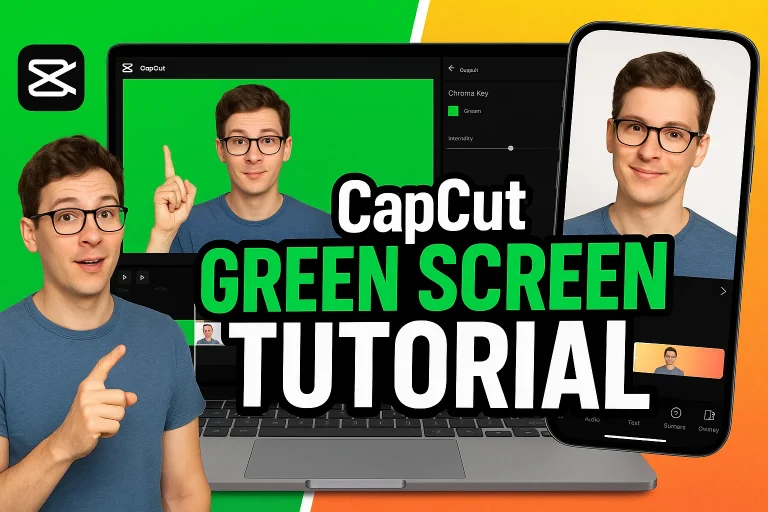
If you’re recording with a solid background (like green or blue), CapCut’s Chroma Key tool is a reliable way to replace it.
Import your video, select it on the timeline, and open the Chroma Key option. Pick the background color and adjust the strength until the subject looks clean.
Many creators prefer this method because it gives more control, especially for professional video editing or cinematic effects.
Third-Party Tools Combined with CapCut
Sometimes CapCut’s built-in remover may struggle with tricky backgrounds (like messy rooms or low light). In such cases, you can use third-party background remover tools like remove.bg or other AI editors to clean up the clip first.
Once the background is removed externally, import the edited video back into CapCut to add effects, transitions, or overlays.
This combination approach offers flexibility and ensures you get polished results for social media videos, tutorials, or marketing content.
Tips for Better Background Removal in CapCut
Good Lighting and Contrast
The quality of your background removal in CapCut largely depends on how well your video is shot. Poor lighting or shadows can confuse the AI background remover, leaving rough edges.
Always try to film in a bright space with even lighting. A simple trick? Stand in front of a plain wall or make sure your outfit contrasts with the background—it helps the tool detect the subject more clearly.
This small adjustment can make a huge difference in getting cleaner, more professional-looking results.
Choosing the Right Video Resolution
High-resolution videos work better when using CapCut’s remove background feature. Lower-quality footage may look blurry, making it harder for the app to separate the subject from the background.
Before recording, set your camera or phone to capture in HD (or higher if available). This ensures smoother editing and sharper edges after the background is removed.
Think of it this way: better input equals better output—your final social media videos or tutorials will look much more polished.
For more informatino read blog: Capcut Tips And Tricks for Advanced Video Editing
Common Issues and How to Fix Them
Background Not Removing Cleanly
Sometimes the AI background remover in CapCut struggles with messy edges or leaves patches behind.
This usually happens when the subject blends into the surroundings or when there’s poor lighting in the video.
To fix this, shoot in bright light, wear clothes that contrast with the background, and consider using the Chroma Key tool for more precise results.
Small edits like cropping or resizing within CapCut can also sharpen the final output.
Lag or Processing Problems
Many users notice lag or slow rendering in CapCut when using the remove background feature, especially on older devices.
This can be caused by large file sizes, insufficient storage, or outdated software.
Solutions include closing other apps while editing, freeing up device memory, or lowering the video resolution slightly to reduce processing load.
On desktops, updating your CapCut app and keeping your graphics drivers current often speeds up performance and prevents crashes.
Also Read:
Final Thoughts
We’ve explored how to remove background in CapCut on both mobile and desktop, along with alternative methods like Chroma Key editing and third-party tools. You also learned practical tips such as using good lighting, shooting in high resolution, and troubleshooting common problems like lag or messy edges. With these steps, your edits can look smoother, sharper, and more professional.
That said, the right method depends on your needs. If you’re creating casual social media videos, the built-in AI background remover might be more than enough. But for advanced projects, combining CapCut with external tools or a green screen could give you more control and better results. There’s no one-size-fits-all—it’s about finding what works best for your content style.Now it’s your turn! Have you tried background removal in CapCut before? Drop your experiences, challenges, or favorite tricks in the comments—we’d love to hear from you. And if you’re ever stuck, don’t hesitate to reach out to CapCut’s support team or explore community forums where creators share helpful advice. Sharing knowledge only makes video editing easier for everyone.
FAQs

Daniel Carter is a tech blogger who enjoys testing Android apps and video editing tools. He has been using and reviewing apps like CapCut for a few years and writes simple guides to help people get the most out of them. Daniel believes that editing doesn’t have to be complicated—his step-by-step tips make it easy for beginners to learn and improve. When he’s not writing, you’ll usually find him trying new apps or sharing CapCut updates with his readers.